Enhancing Winter Digital Art: A Practical Guide to Snowflake Procreate Stamps and Brushes
Digital illustration on the iPad has evolved from a niche hobby into a robust professional workflow, largely driven by the versatility of apps like Procreate. Within this ecosystem, specialized assets such as Snowflake Procreate Stamps have become essential tools for artists looking to streamline their creative process during the winter season. Whether you are designing holiday greeting cards, creating social media content, or illustrating children’s books, understanding how these digital tools function and how they compare to manual drawing methods is crucial for making an informed decision about your resource library.
This guide explores the utility of a typical Snowflake Procreate Stamp Brush Set, examining its technical requirements, installation process, and practical applications. By evaluating the tradeoffs between using pre-made stamps versus custom brushes or hand-drawn elements, artists can better determine if this specific type of asset aligns with their current project needs.
Understanding the Asset: What Are Snowflake Procreate Stamps?
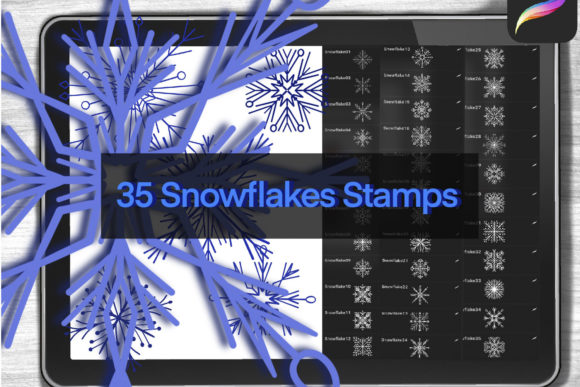
At their core, Snowflake Procreate Stamps are pre-designed digital images imported into the Procreate app as brush tips. Unlike standard brushes that paint a continuous stroke, stamp brushes place a single, complete image onto the canvas with each tap. A comprehensive set, such as one containing 35 unique snowflake designs, offers variety in geometry, complexity, and style. These can range from simple six-point geometric stars to intricate, lace-like crystalline structures.
The primary distinction of these tools lies in their efficiency. Drawing a realistic or stylized snowflake manually requires precision, symmetry tools, and significant time. Using a stamp reduces this process to a single gesture. This makes them particularly valuable for Winter Procreate projects where background elements or repetitive patterns are needed. However, it is important to recognize that these are not merely "shortcuts"; they are design elements that require thoughtful placement and customization to avoid a generic appearance.
Technical Requirements and Compatibility
Before purchasing or downloading any digital art assets, verifying compatibility is a prudent step. For Snowflake Procreate Stamps to function correctly, specific hardware and software conditions must be met:
- iPad: Any iPad model that supports the current version of Procreate. Older models may experience latency with high-resolution stamps.
- Apple Pencil or Stylus: While finger painting is possible, a stylus offers the pressure sensitivity and precision needed for detailed composition.
- Procreate App: The latest stable version is recommended to ensure all brush engine features, such as shape dynamics and scattering, work as intended.
It is worth noting that these files are proprietary to the Procreate ecosystem. They will not work in Adobe Fresco, Photoshop, or Clip Studio Paint without conversion, which often results in quality loss. Therefore, this tool is best suited for artists already committed to the Apple iPad workflow.
Installation and Setup: Navigating the File Process
One of the most common friction points for digital artists new to importing assets is the file management process. Unlike physical supplies, digital tools require a few steps to become usable. Understanding this workflow helps prevent frustration and ensures the Procreate Snowflake brushes are ready for immediate use.
Most sets are delivered as zipped files to reduce download size. Here is a practical breakdown of how to access and install these tools:
- Download the Files: After purchase, save the file to your iPad’s "Downloads" folder via Safari or your preferred browser.
- Unzip the Archive: Open the Files app on your iPad. Navigate to the Downloads section. Locate the zipped file and tap it once. Select "Unzip" to extract the contents. You should now see the actual .brushset or .procreate files.
- Import to Procreate: Tap the unzipped file and select "Share" or "Open In." Choose Procreate from the list of apps. The app will launch automatically, and the new Snowflakes Stamps will appear in your brush library, typically at the top of the list or in a newly created folder.
If the "Open In" option does not appear, you can alternatively open Procreate first, go to the Brush Library, swipe left on any category to create a new set, and then drag and drop the file from the Files app split-screen view. This method provides more control over where the Winter Brushes are stored within your organizational structure.
Comparing Approaches: Stamps vs. Manual Drawing vs. Standard Brushes
When deciding whether to integrate Snowflake Procreate Stamps into your workflow, it is helpful to compare them against alternative methods. Each approach has distinct strengths and limitations depending on the project scope.
Manual Drawing
Drawing snowflakes by hand offers total creative control. You can customize every arm and crystal structure to fit a specific narrative or artistic style. However, this method is time-intensive. For backgrounds requiring dozens of snowflakes, manual drawing is inefficient. It is best reserved for focal points where unique detail is critical.
Standard Textured Brushes
Some artists use splatter or texture brushes to simulate snow. These are excellent for creating atmospheric depth and soft, out-of-focus snowfall. However, they lack the defined geometric structure of a snowflake. If your design requires recognizable, crisp snowflake shapes—such as for a Christmas Stamps themed invitation—texture brushes may appear too abstract.
Stamp Brushes
Procreate Snowflakes stamps strike a balance between speed and definition. They provide instant, recognizable shapes that can be resized, rotated, and opacity-adjusted. The tradeoff is potential repetition. If used without variation, a scene can look patterned and artificial. To mitigate this, artists should utilize multiple stamps from a diverse set (like a 35-stamp collection) and vary their size and orientation significantly.
Practical Use Cases and Best-Fit Scenarios
Identifying when to use Snowflake Procreate Stamps can significantly enhance productivity. Here are several scenarios where these tools excel:
- Holiday Card Design: Creating borders or backgrounds for digital or print-on-demand greeting cards. The ability to quickly populate space with festive elements allows designers to focus on typography and central illustrations.
- Social Media Content: For influencers or brands posting daily Winter Procreate themed content, stamps allow for rapid turnaround times. Adding subtle snow accents to photos or illustrations can maintain seasonal relevance without hours of editing.
- Pattern Creation: By combining different snowflake stamps and adjusting their spacing, artists can create seamless repeating patterns for wrapping paper or textile designs.
- Educational Materials: Teachers and content creators making winter-themed worksheets or presentations can use these stamps to add visual interest quickly.
Limitations and Considerations
While versatile, Snowflake Procreate Stamps are not a universal solution. Artists should be aware of certain limitations. First, resolution matters. Ensure the stamps are high-resolution to avoid pixelation when scaled up for large prints. Second, overuse can lead to visual clutter. A common mistake is filling every empty space with a snowflake, which distracts from the main subject. Effective use involves negative space and hierarchy.
Additionally, these tools are static. While you can change their color, you cannot easily animate the internal structure of the snowflake without frame-by-frame animation techniques. For dynamic motion graphics, other tools might be more appropriate.
Making the Right Choice for Your Workflow
Deciding to invest time in learning and using Snowflake Procreate Stamps depends on your specific goals. If you frequently create winter-themed art, holiday designs, or need efficient ways to add atmospheric details, this set is a highly practical addition to your digital toolkit. The convenience of having 35 varied designs allows for natural-looking compositions that avoid the monotony of single-shape repetition.
However, if your work focuses on hyper-realistic meteorological accuracy or highly customized character-driven illustrations where every element must be unique, you may find yourself relying more on manual drawing techniques. In many professional workflows, the best approach is hybrid: using stamps for background elements and manual drawing for foreground focal points.
Ultimately, Procreate Winter assets like these are about expanding your creative vocabulary. They offer a reliable, efficient way to capture the essence of the season, allowing you to spend less time on repetitive tasks and more time on the artistic decisions that truly define your style. By understanding how to install, customize, and strategically apply these stamps, you can enhance both the quality and efficiency of your digital illustrations.